Event Space & Classrooms
Click on a room to display the capabilities and instructions
Classrooms, conference rooms, and event spaces
All rooms have the following common services: Desktop Computer with internet access, Wi-Fi and Zoom.
Click a room to see seating, displays, microphones, and how to present. Open Podium Control or AV System instructions when you need the step-by-step. Wi-Fi and Zoom are available in every room and open the matching guide.
Room capabilities
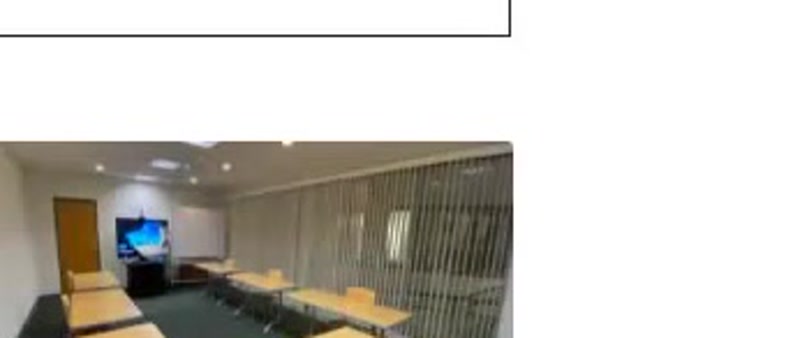
Conference Room 210
Flexible conference room with a 75" monitor and multiple seating layouts.
Seating capacity by setup
U Shape
20
Classroom
24
Theater
36
Hollow Square
24
Round Tables
N/A
Long Tables
24
AV capabilities
Podium
- Laptop & tablet connections
- HDMI
- USB-C
Screens
- 75" Monitor
Always available
- Desktop computer with internet access
- Wi-Fi
- Conferencing capabilities
If the camera preview is dark, open the privacy shutter on the bar at the top of the display.
How to use it
- 1Power on the 75" display.
- 2Join the meeting from the room PC or Zoom app.
- 3Use HDMI or USB-C for guest laptops.
- 4Log off and leave the display on the home screen.
Need help fast?
UCDC IT
UCDC accounts, computers, Microsoft 365, Wi-Fi, AV, and Zoom (except accounts)
UCOP ITS
UCOP accounts, Duo, UCOP Outlook forwarding, Box, Zoom accounts, and VPN