Event Space & Classrooms
Click on a room to display the capabilities and instructions
Classrooms, conference rooms, and event spaces
All rooms have the following common services: Desktop Computer with internet access, Wi-Fi and Zoom.
Click a room to see seating, displays, microphones, and how to present. Open Podium Control or AV System instructions when you need the step-by-step. Wi-Fi and Zoom are available in every room and open the matching guide.
Room capabilities
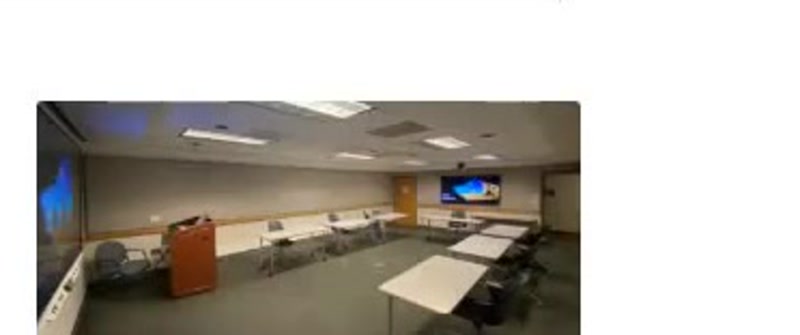
Classroom 318
Larger classroom with an 85" smartboard, 65" rear monitor, and podium control.
Seating capacity by setup
U Shape
22
Classroom
28
Theater
48
Hollow Square
28
Round Tables
N/A
Long Tables
28
AV capabilities
Podium
- Laptop & tablet connections
- HDMI
- USB-C
Screens
- 85" Smartboard
- 65" Rear monitor
Always available
- Desktop computer with internet access
- Wi-Fi
- Conferencing capabilities
Largest standard classroom on this list. Use the room mic for hybrid sessions.
How to use it
- 1Wake the instructor desktop and log in with your UCDC account if prompted.
- 2Power on the display from the podium touch panel (or the TV power button in rooms without a panel).
- 3Present from the room PC, or connect a laptop with HDMI or USB-C at the podium.
- 4For Zoom, open the meeting on the room PC so students hear the room speakers and microphone.
- 5Shut the system down from the panel, log off the PC, and leave cables in place.
Need help fast?
UCDC IT
UCDC accounts, computers, Microsoft 365, Wi-Fi, AV, and Zoom (except accounts)
UCOP ITS
UCOP accounts, Duo, UCOP Outlook forwarding, Box, Zoom accounts, and VPN